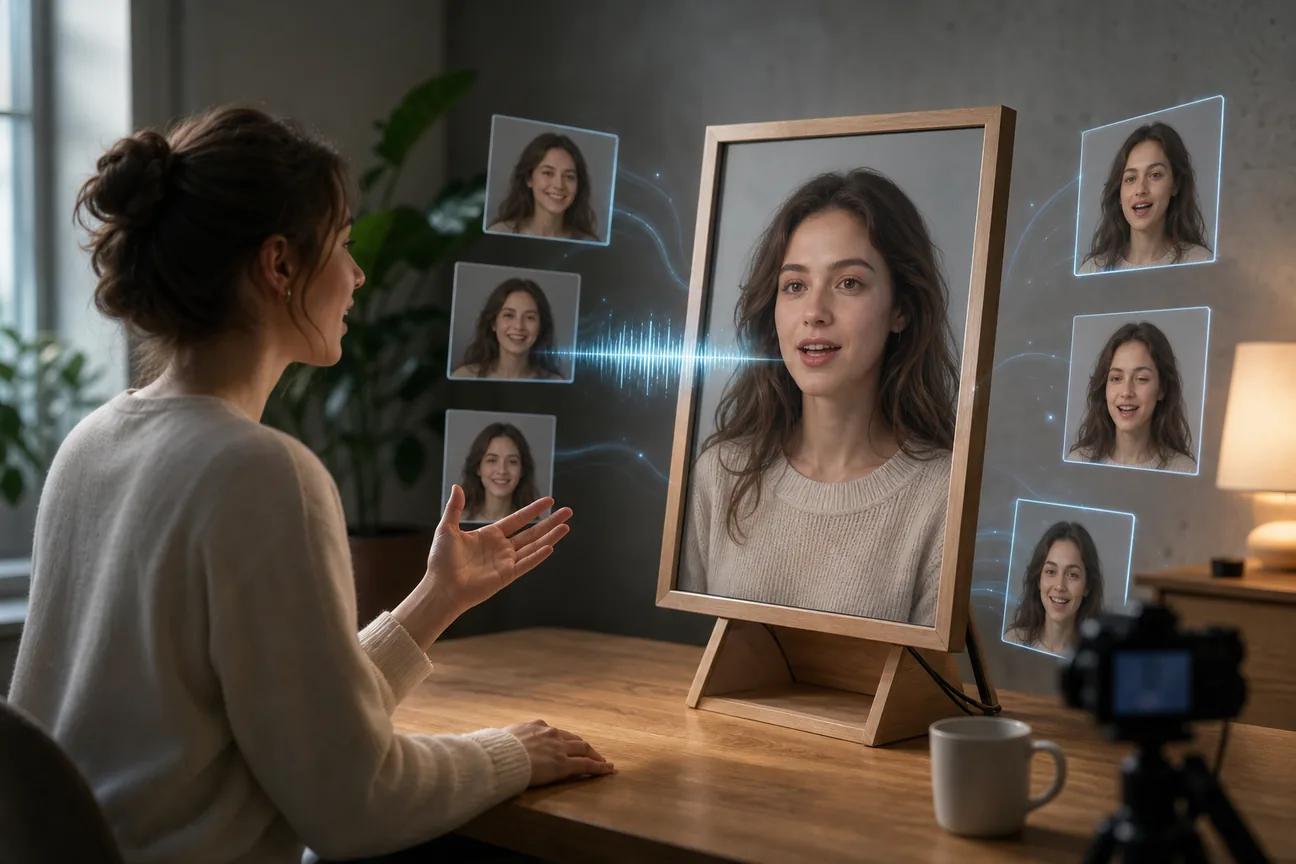
Turn one still image into a speaking video, add a voice, and you have a talking photo AI clip. The hard part is picking a tool that fits your goal, budget, and quality bar. Here are 10 named options, with HailuoLabs first for creators who want short AI video with strong image control.
1. HailuoLabs
HailuoLabs is best for creators who want to turn text, images, video, or audio into short AI video clips.
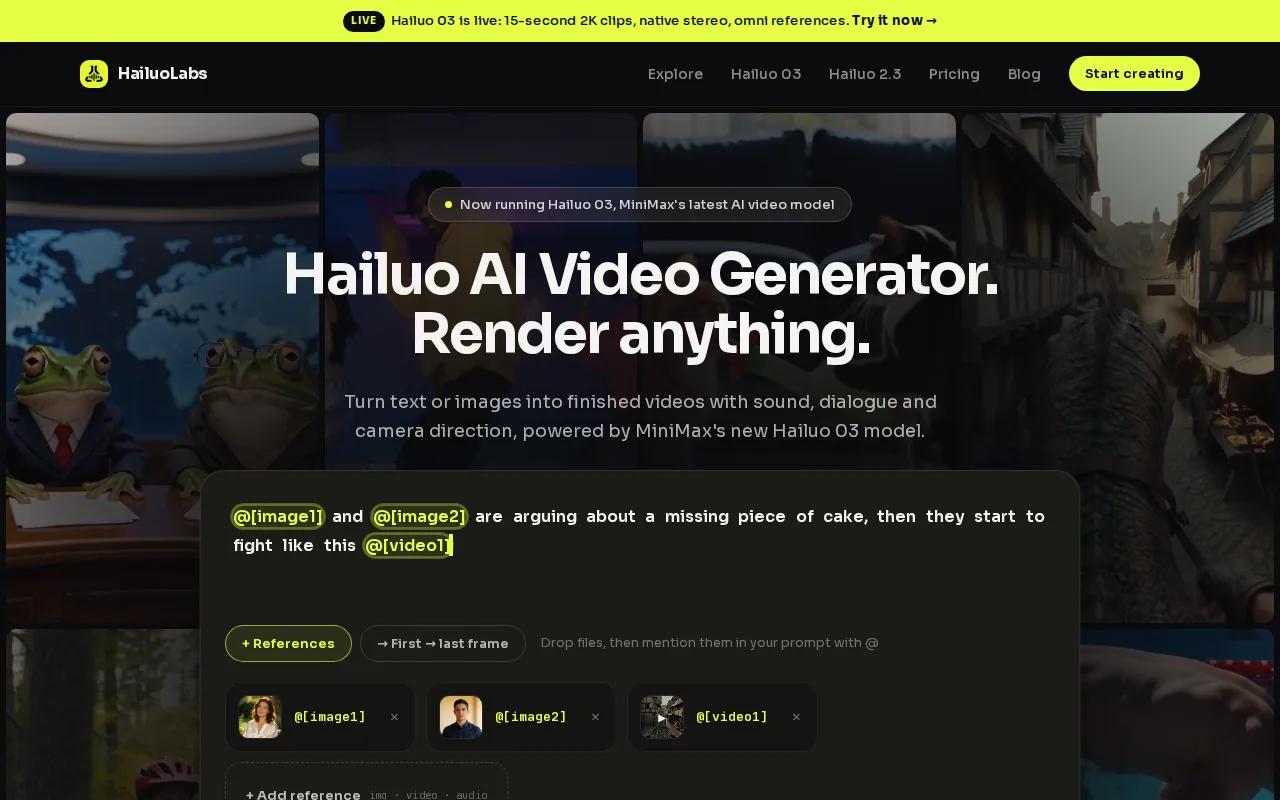
Its flagship Hailuo 03 model supports clips up to 15 seconds, with 768p or 2K generation, native stereo sound, first and last frames, omni references, and edit tools. That gives you more control than a basic mouth-animation app. You can build a portrait scene, add spoken dialogue, then guide the look with image or audio references.
The free Hailuo plan is simple. It gives you watermarked Hailuo 02 exports at 512p. Paid plans open access to Hailuo 2.3, Hailuo 2.3 Fast, Hailuo 03, higher resolutions, video references, and editing.
HailuoLabs is a strong fit for short product ads, social clips, visual tests, and character-led scenes. It doesn't list an external API, so developers who need programmatic avatar generation may prefer a different option.
2. HeyGen, Strong avatar, voice, and localization controls
HeyGen is best for polished talking portraits, digital presenters, and multilingual content.
You upload a front-facing photo, type a script or add audio, and the system renders speech with mouth movement, blinks, and head motion. Its avatar tool also supports illustrated characters and mascots, so you're not limited to human headshots.
HeyGen lists more than 175 languages and 3,200 accents. It also supports AI voice cloning, an API, and output up to 4K. The same face can speak to different markets, which helps when one campaign needs many language versions.
The trade-off is its free plan. It allows three videos per month at 720p with a watermark. Paid access is the more realistic choice for frequent publishing or 4K output.
Choose HeyGen when voice range and localization matter more than a standalone image-to-video studio.
3. D-ID, Simple photo-to-speaking-avatar workflows
D-ID is best for turning a portrait plus text or audio into a presenter video with little setup.
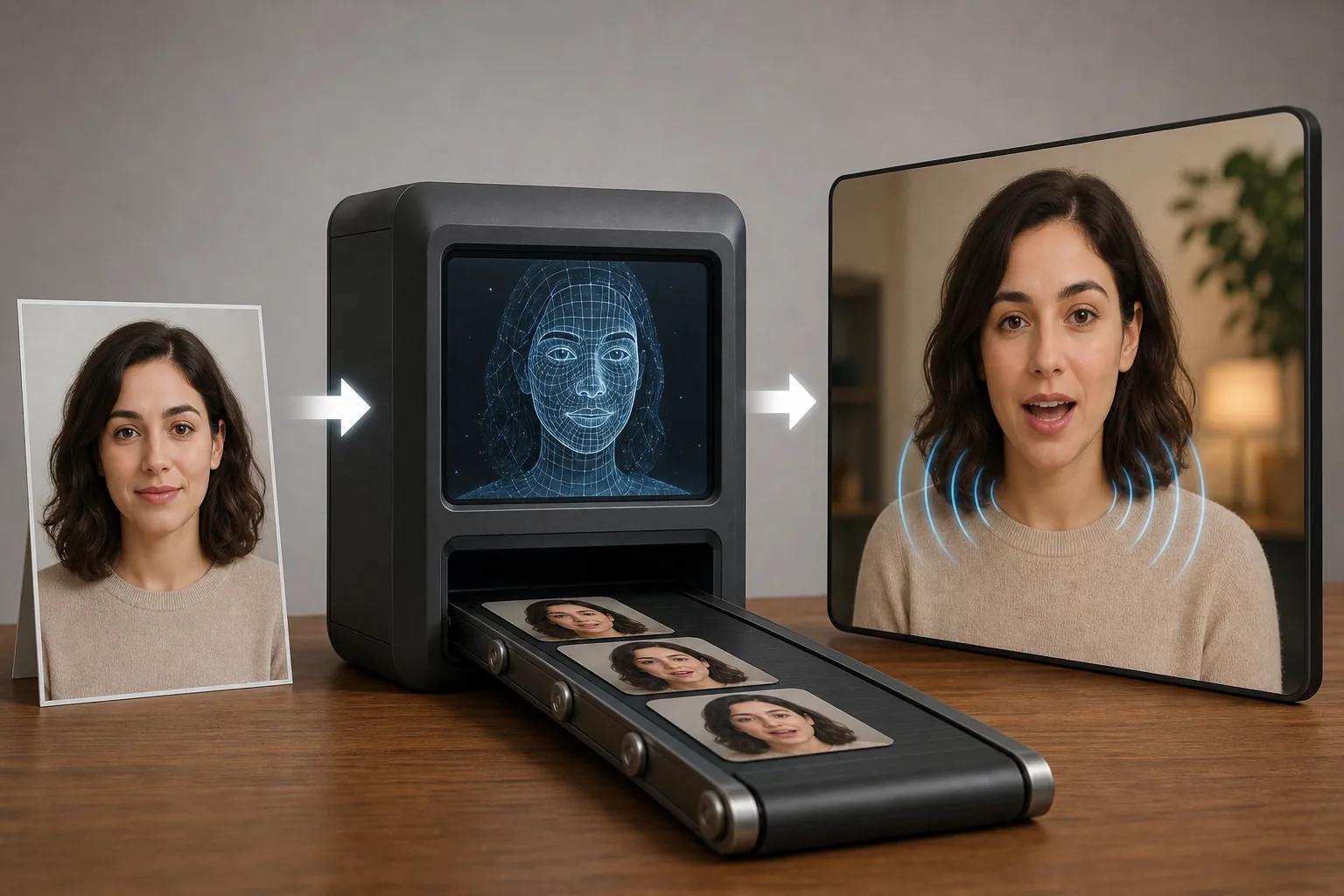
Its workflow starts with one image. You add a script or upload audio, then generate a speaking presenter. D-ID also supports training content, sales messages, internal updates, and marketing videos. It can localize content across more than 120 languages, based on the product information supplied for this comparison.
The key reason to consider D-ID is its developer path. Its API can generate videos from an image and audio file, and it supports streaming use cases. That could fit a support chatbot, an interactive lesson, or an app that needs a digital presenter after each user prompt.
The API adds setup work that casual users don't need. If your goal is one short greeting or social clip, the studio workflow is the better place to start. If your product needs generated presenter replies, review the available API options before you commit.
D-ID makes the most sense when integration is part of the brief, not an afterthought.
4. Synthesia, Business-ready multilingual presenters
Synthesia is best for teams that need avatar-led training and business videos in many languages.
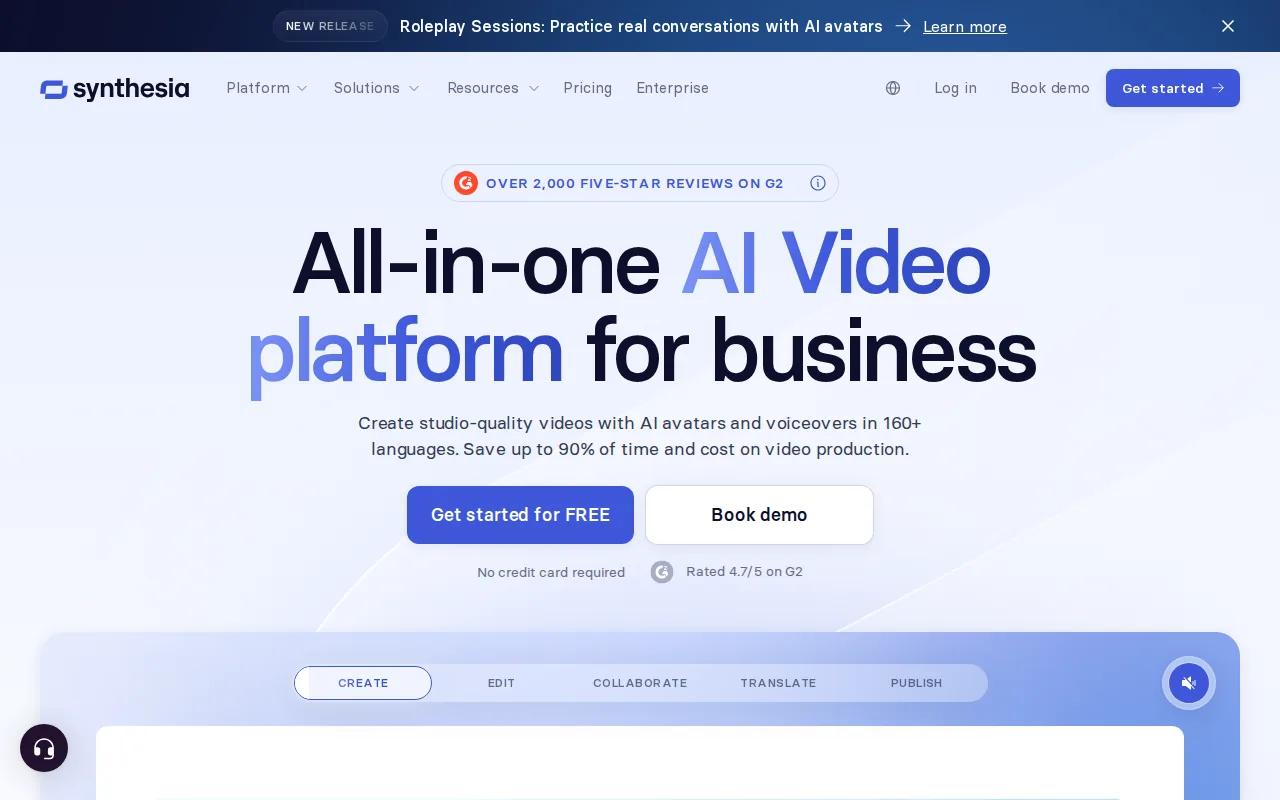
Its strength is the presenter format. You can use a digital person to explain a policy, product update, course lesson, or onboarding task. The source data lists support for more than 160 languages and voice cloning, which helps teams keep a familiar voice across repeated lessons.
It is less focused on playful portrait animation. A marketer making a singing cartoon or a fast visual experiment may find the workflow too formal. A learning team, though, can reuse the same presenter style across modules and revise scripts without arranging another shoot.
Use a clear source image when you want a photo-based avatar. Keep the script short enough for natural pacing. A talking photo can look polished at the face while still feeling stiff if the line is too long or the delivery has no pause.
5. Creatify, Social and ad-focused talking creatives
Creatify is best for marketers who care about ad variations and direct social publishing.
Creatify is useful when the finished talking image is part of a paid or organic social workflow rather than a standalone presentation.
Its free plan is available with limited features. That gives you a low-risk way to test the basic workflow before you plan a larger ad batch. Start with one product image and one short hook. Then check the face, product shape, captions, and call to action on a phone.
Creatify may be a better fit for campaign production than for a cinematic talking character.
Pick it when publishing and ad testing sit at the center of your workflow.
6. Runway, Creative image-to-video experimentation
Runway is best for testing motion and visual ideas from still images.
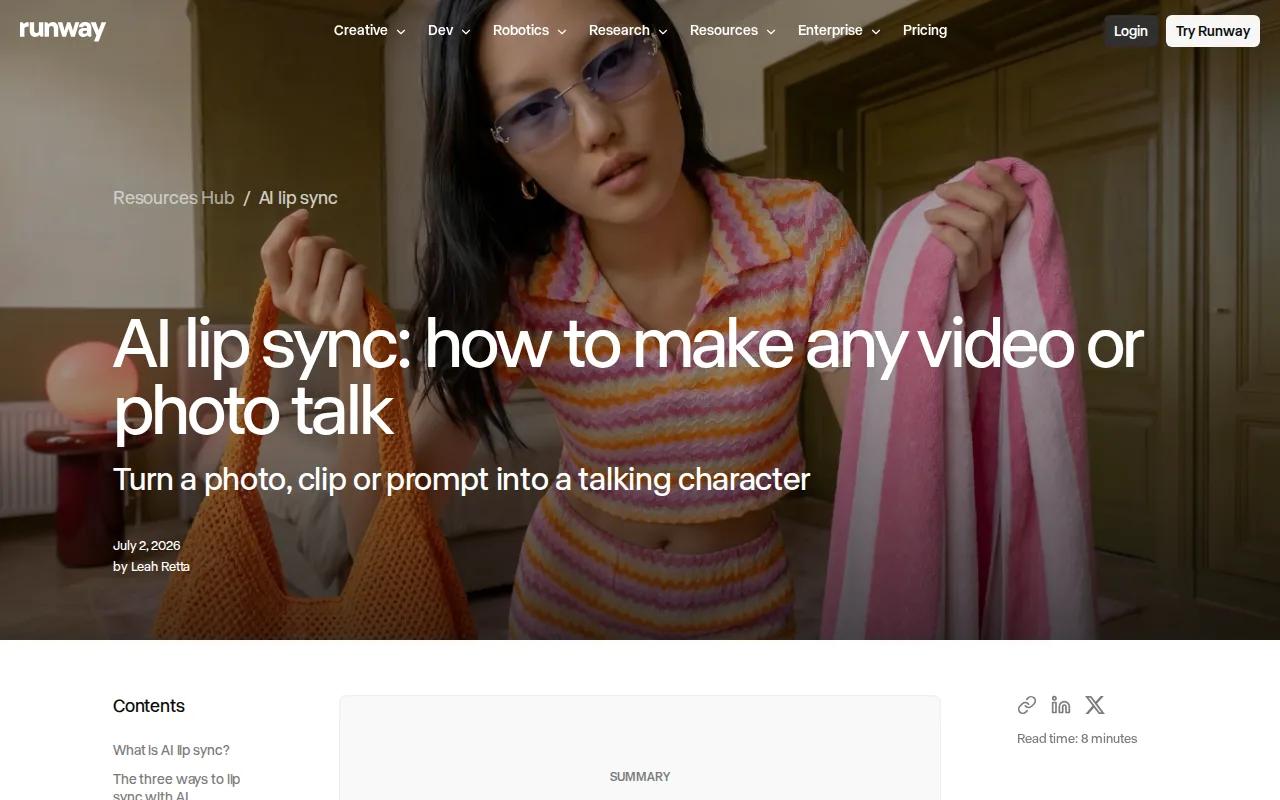
The free plan gives you a one-time 125-credit allowance, so it works better as a test window than as an unlimited free workspace.
For a talking photo, focus on one clear action. A portrait turning toward the camera is easier to control than a portrait speaking while walking through a crowd. You may need a separate voice or lip-sync pass if the main goal is precise dialogue.
Runway is a sensible choice for visual exploration. It is less compelling if your main requirement is a multilingual presenter or a dependable free talking-head workflow.
7. Google Flow (Veo 3.1), High-resolution generative scenes
Google Flow is best for short generative scenes where output resolution matters.
The listed paid maximum is 4K, with a maximum video length of eight seconds. Its free access includes 50 renewable daily credits and up to five Veo 3.1 Lite clips each day.
That credit model can suit frequent light testing. You get a fresh daily allowance instead of a single one-time burst. The short clip limit still matters, especially when dialogue needs room to sound natural.
Use Flow for a visual portrait scene, then review the mouth and eyes closely. High resolution does not guarantee accurate speech. If the brief is a clean presenter with a script, a dedicated avatar tool may save time.
8. Kling, Short animated portrait clips
Kling is best for brief animated portrait experiments.
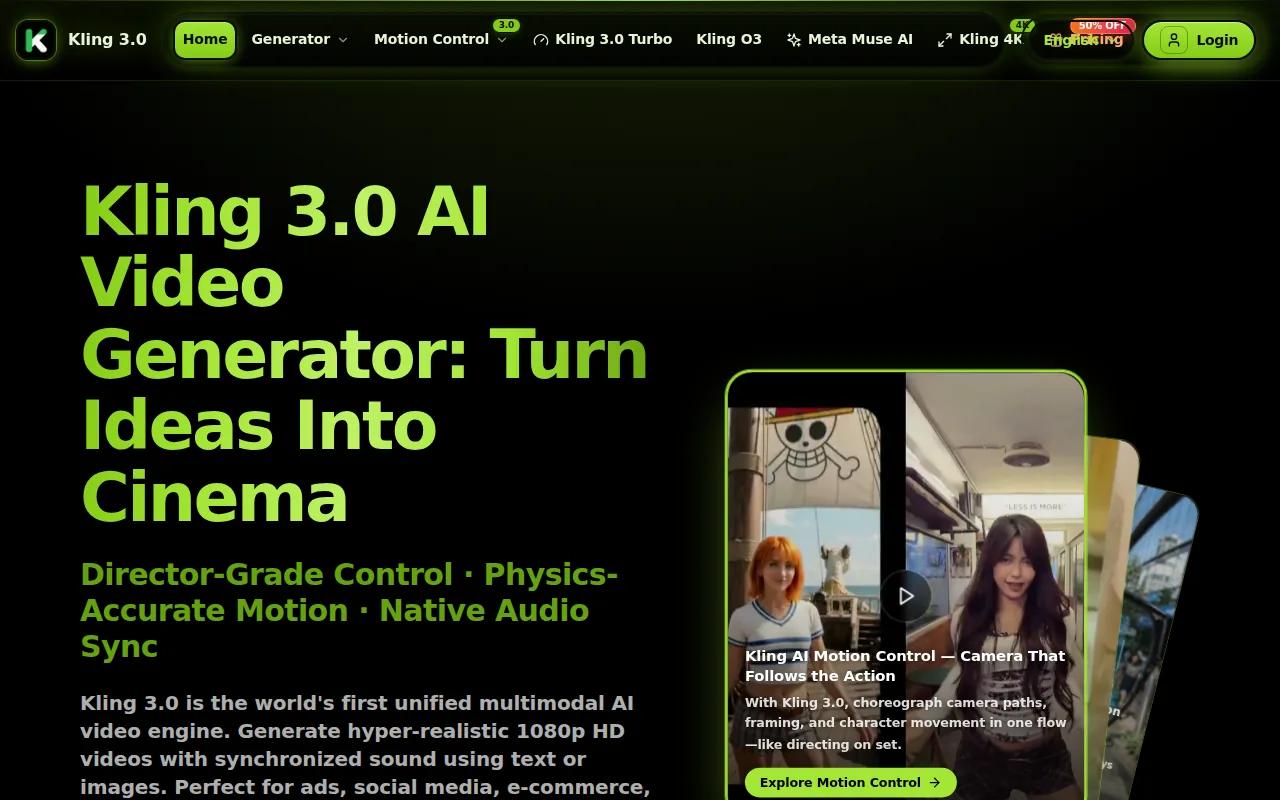
Kling can work for a visual hook, reaction, or quick transition.
It is less suited to a full greeting or explainer because five seconds leaves little space for spoken lines. Keep the prompt tight. Describe the subject first, then name one motion and one camera move.
If your clip needs clear dialogue, test the first and last words before you build a larger sequence. A face can move well while the mouth still misses the audio.
9. Colossyan, Training videos with cloned voices
Colossyan is best suited to training videos with a business presenter.
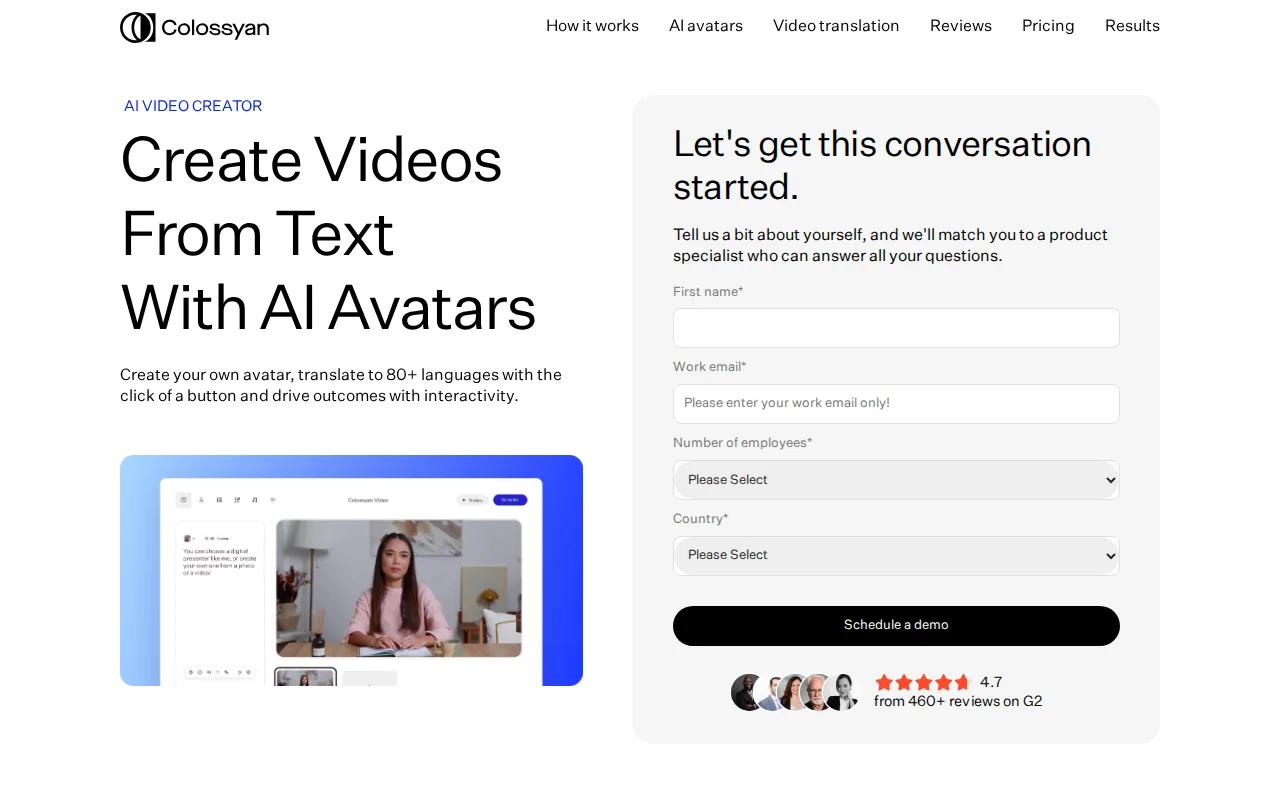
Write one short lesson, test the delivery, and check whether the presenter feels natural at normal playback speed. Training content needs clear timing more than dramatic motion.
Colossyan is not the first pick for playful animal clips or fast social experiments. Its value is strongest when the same presenter style must support internal learning content over time.
10. Camtasia, Familiar editing with AI voice options
Camtasia is best for people who want a known video editor with AI voice choices.
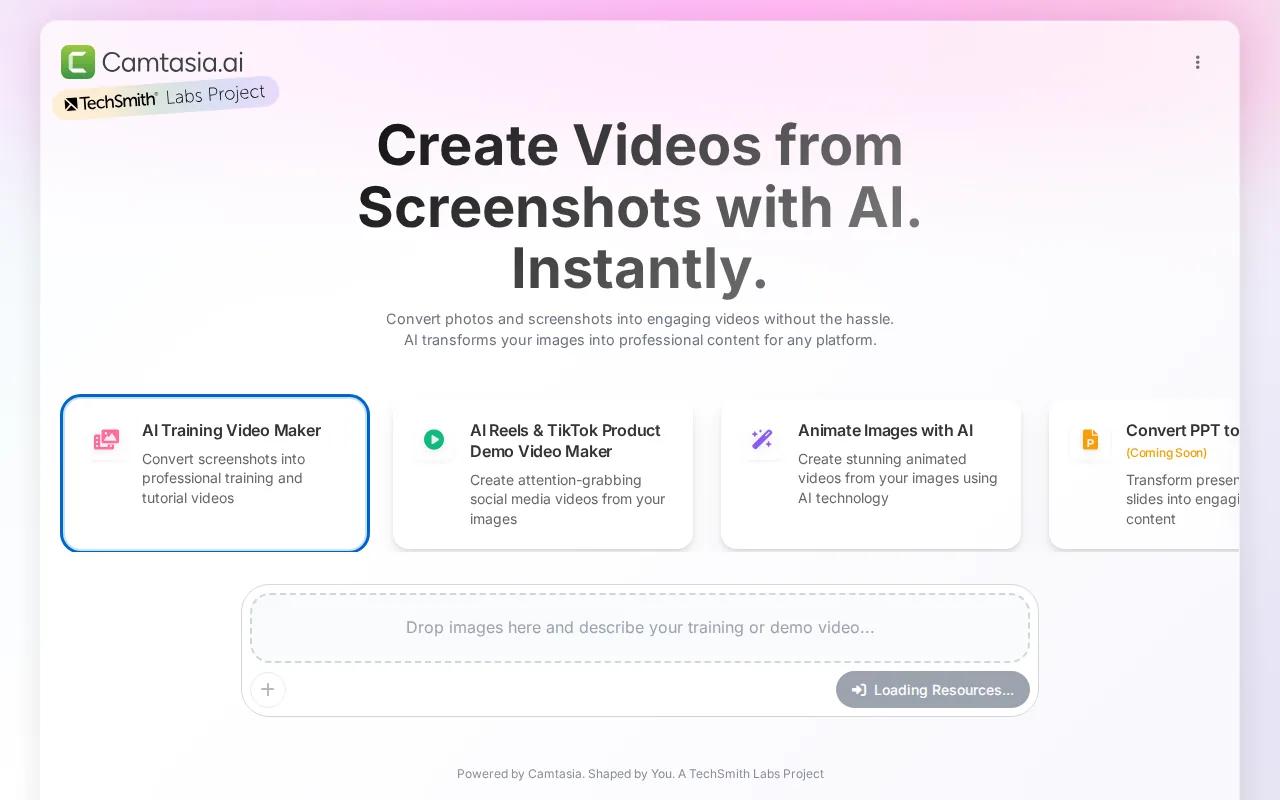
Camtasia is useful when the talking photo is one part of a larger edit, such as a screen lesson or narrated product demo.
You may need more editing control than an avatar-first platform gives you. Trim the clip, place it beside a screen recording, then add captions in the editor. This approach works well when the portrait should introduce a lesson instead of filling the whole frame.
For a pure photo-to-talking workflow, Camtasia may feel less direct. For mixed media work, its familiar editing approach can be the deciding factor.
Talking Photo AI Tools Compared
The right tool depends on what you need after the first render. Resolution helps, but it isn't the whole test. Voice range, clip length, integration, and free-use limits can change the best choice.
| Tool | Best fit | Key detail | Watch out for |
|---|---|---|---|
| HailuoLabs | Short AI video experiments | Hailuo 03 supports up to 15 seconds and 2K generation | Free Hailuo 02 exports are 512p with a watermark |
| HeyGen | Localized presenters | 175+ languages, API, up to 4K | Free plan has three 720p watermarked videos monthly |
| D-ID | API-driven presenters | Text or audio input with API support | Technical setup takes more work |
| Synthesia | Business training | 160+ languages and voice cloning | Less suited to playful animation |
| Creatify | Social ads | Direct TikTok and Meta integrations | Free plan has limited features |
| Runway | Motion testing | 720p maximum, one-time 125 free credits | Free credits don't renew |
| Google Flow | Short high-resolution scenes | Paid output up to 4K | Clips max out at eight seconds |
| Kling | Very short portrait clips | 720p maximum and five-second clips | Too short for longer scripts |
| Colossyan | Training with cloned voices | Voice cloning and listed 4K export | Less focused on casual social content |
| Camtasia | Mixed video editing | ElevenLabs voice options | Photo animation is part of a wider editor |
For a simple first test, use a clear front-facing portrait, a short line, and one intended output format. If the face or object must stay consistent, add an image reference instead of repeating a long prompt; a structured prompting approach can also make results easier to control.
FAQ
What is talking photo AI?
Talking photo AI turns a still image into a video with speech, lip movement, and facial motion. You usually upload a portrait, add text or an audio file, then render the clip. Some tools also animate cartoons, mascots, animals, singing characters, or dancing figures.
How do I make a photo talk with AI?
Upload a clear image first, then add a short script or voice recording. Choose the voice and style if the tool provides those controls. Render the video, watch the mouth and eyes, and revise the source image or audio if the motion looks off.
Can AI talking photos use my own voice?
Yes, some talking photo AI tools accept a recorded voice, while others support voice cloning. You should only clone or animate a voice when you have the speaker's permission.
Are talking photo AI videos realistic?
They can look convincing when the source photo faces the camera and has even light. Clear speech also helps. Common problems include weak lip timing, stiff expressions, odd eye motion, warped hands, and changes to the face between shots. Always review the final clip before publishing.
Can I use AI talking photo videos for business?
Yes, businesses use them for ads, lessons, product explainers, greetings, internal updates, and social posts. Check the tool's commercial-use terms before publishing paid work. HailuoLabs paid plans include a commercial licence, while free exports carry a watermark.
Is there a free talking photo AI tool?
Yes, free access varies by tool. HailuoLabs provides watermarked 512p Hailuo 02 exports. Runway uses a one-time credit allowance, Google Flow provides renewable daily credits, and HeyGen lists three free videos per month. Free plans are best for checking output quality before you pay.
Start with HailuoLabs if you want a flexible short-video studio for image-led experiments, dialogue scenes, or social clips. Follow the first-video workflow, test a clear portrait with a short line, and move to Hailuo 03 when you need higher resolution and more control.