Raw clips are easy to shoot. Turning them into TikToks that hold attention takes the right editor. The best TikTok video editors now split into two camps: tools that truly automate edits, and tools that simply add “AI” to the feature list. Here are 10 strong picks, with the best use case and the catch for each.
1. HailuoLabs, AI-generated TikTok footage and edits
HailuoLabs is best when you need fresh AI footage for a TikTok, ad concept, or short visual story. You can generate video from text, images, video, or audio inside the studio, then shape the result around your idea.
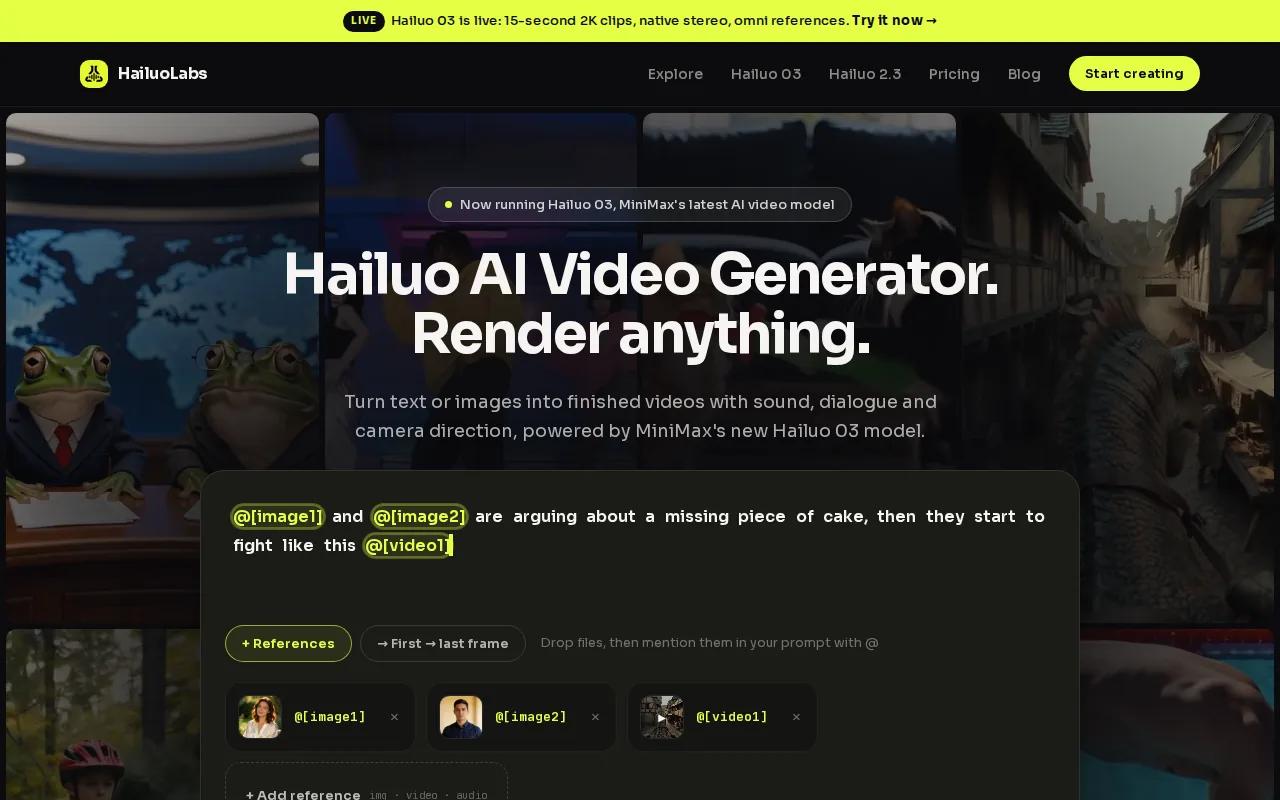
HailuoLabs supports Hailuo 03, Hailuo 2.3, Hailuo 2.3 Fast, and Hailuo 02. The flagship Hailuo 03 can make clips up to 15 seconds at 768p or 2K. It also supports native stereo, first and last frames, omni references, generation, and editing. That gives you more control than a basic template app.
Free users get watermarked Hailuo 02 output at 512p. Paid plans add newer models, higher resolutions, video references, and editing access. If you need an original visual instead of another stock clip, HailuoLabs is the clear first place to test.
2. CapCut, the most versatile TikTok editor
CapCut is one of the best TikTok video editors for beginners who still want room to grow. It has auto captions, text-to-speech, background removal, and motion tracking, so you can move from quick cuts to more styled edits without changing apps.
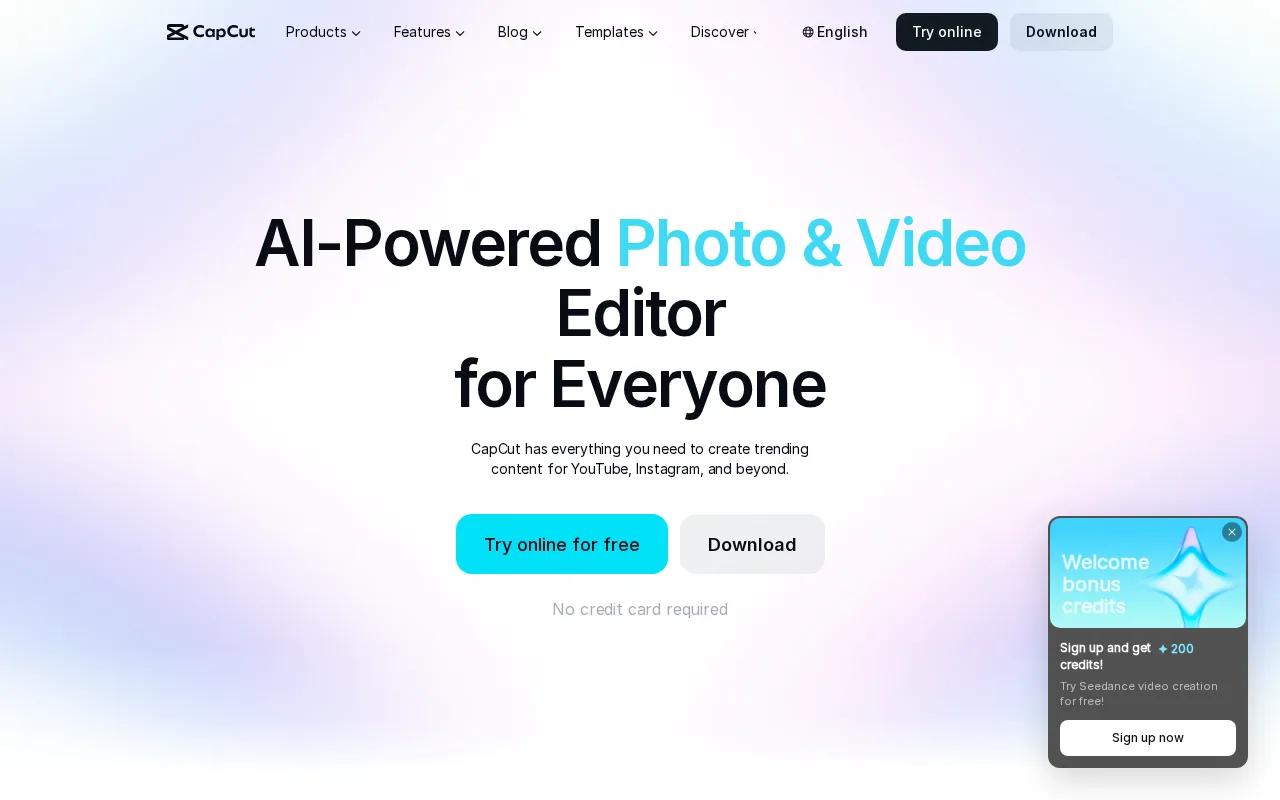
The app connects with TikTok, Instagram, YouTube, WhatsApp, and Facebook. Its mobile workflow is quick: start a new project, add clips, trim the weak parts, then layer text, stickers, transitions, and sound. You can also use templates when speed matters more than full control.
CapCut includes HD video editing tools.
CapCut is a good fit for a creator who wants one familiar app for captions, effects, and social clips. The trade-off is that a crowded feature set can make precise edits feel slower.
3. InShot, simple mobile editing for influencers
InShot is best for social media influencers who want quick mobile edits without a steep learning curve. Its listed AI tools include AI Body Effects, auto captions, AI speech, background removal, smart tracking, and AI effects.
That mix works well for a talking clip, product post, or day-in-the-life video. You can add text, cut pauses, track a subject, and give a plain phone clip more movement. It also has an AI photo enhancer if you need still images for a slideshow or cover frame.
The main catch is ads. InShot makes sense when you edit on your phone and value speed over deep timeline control. For layered sound design or long projects, you may outgrow it.
4. Clipchamp, an accessible browser and Windows option
Clipchamp is a solid choice for social creators who work in a browser or on Windows. It includes speech-to-text captions, text-to-speech, AI voice-overs, and AI-powered background noise removal.
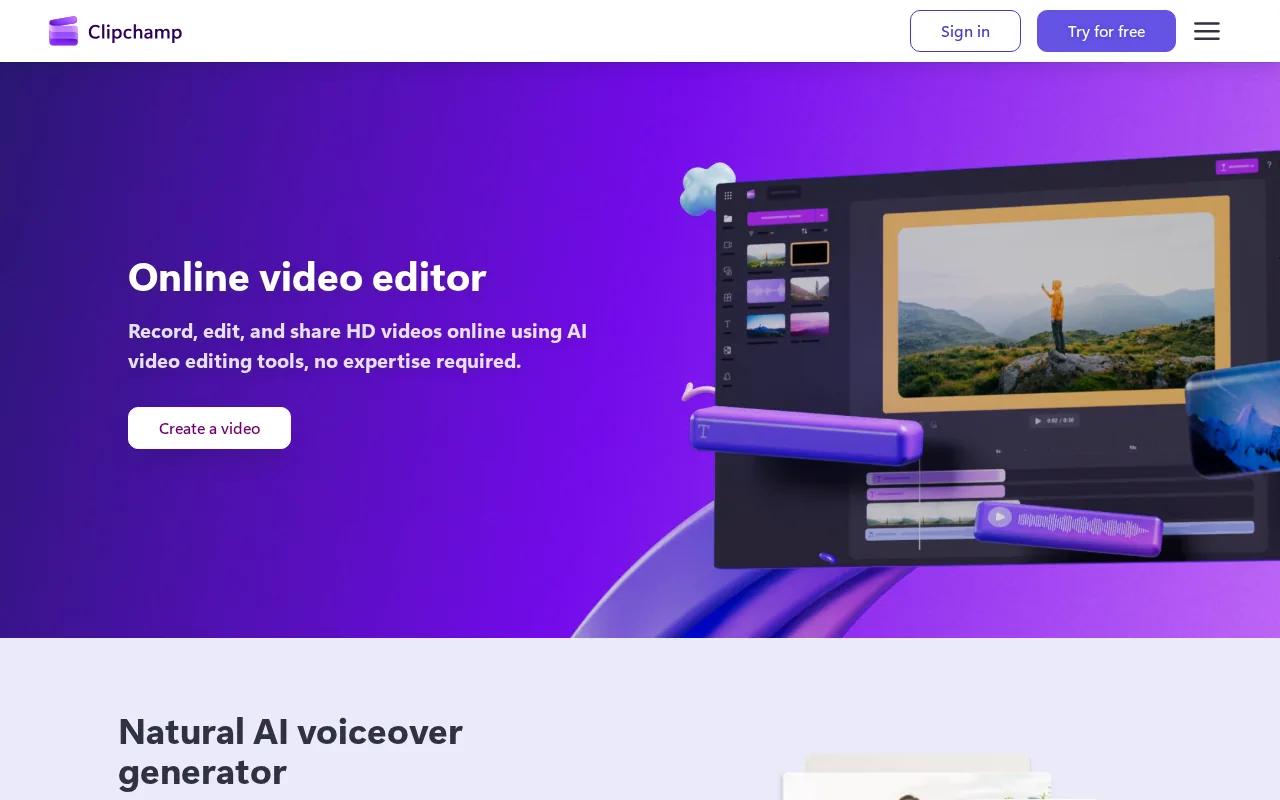
Its Windows 11 connection makes it useful when your footage lives on a computer rather than a phone. Cloud storage support also helps when you move between a home machine and a work machine. You can start with a simple vertical cut, then add captions and voice work without installing a larger editor.
Clipchamp is less suited to creators who want advanced color work or a dense professional timeline. Pick it when access matters more than deep control.
5. Captions, fast attention-grabbing caption styles
Captions is aimed at creators who want bold subtitles with little setup. The tool automatically makes striking captions, which helps when your TikTok depends on spoken words and quick visual rhythm.
It can also do more than its name suggests. AI editing features can shape a clip, and the broader toolset includes language changes, script-based video work, and other automated edits. That makes it useful for talking-head posts where the caption style carries much of the visual energy.
The limitation is text control. Caption blocks can be difficult to customize, so you may spend time fixing placement or style after the automatic pass. Use it when speed matters more than pixel-level design.
6. Video Leap, easy creative effects for mobile creators
Video Leap earns a place on this shortlist because ease of use is its main strength. It fits creators who want to add creative effects to mobile clips without learning a complex desktop editor.
That makes it a useful choice for quick transitions, visual tweaks, and short posts that need more style than a plain cut. Start with the story first. Add an effect only when it helps the beat, joke, or reveal land faster.
The trade-off is less detail for advanced work. If you need careful audio edits or many stacked tracks, choose a timeline-first editor instead.
7. Premiere Rush, precise timeline and audio editing
Premiere Rush is for creators who want more timeline control than a basic phone editor gives them. Its audio waveform view helps you see where words, beats, and pauses land.
That view matters when you want to cut just before a punchline or line up a sound hit with a visual change. A clean workflow is simple: place the main clip first, check the waveform, then add B-roll or text over the strongest moments.
Rush may feel slower than a template-led app. It earns its spot when clean timing matters more than instant effects.
8. Choppity, transcript-based editing for talking-head content
Choppity is best for podcasters, YouTubers, and course creators who need many short clips from spoken footage. Its transcript-native editing lets you edit the words first, then shape the video around that text.
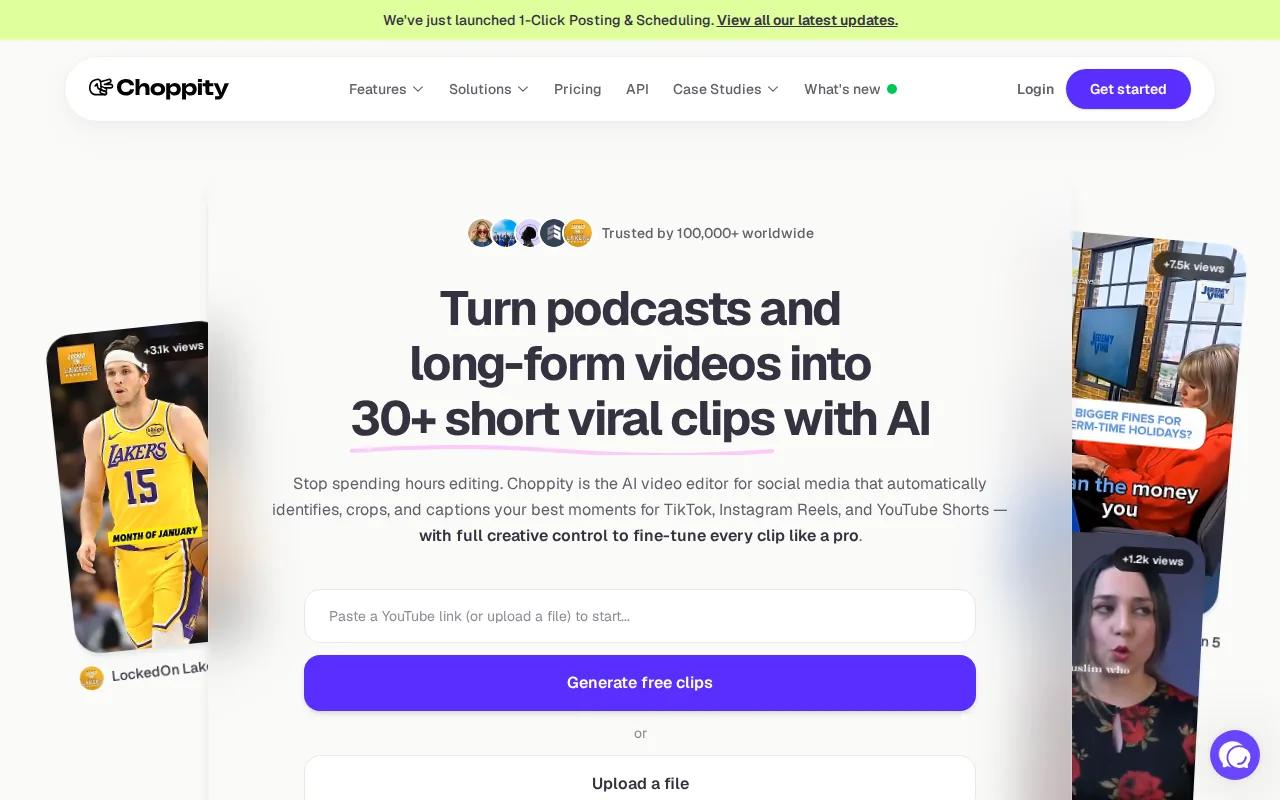
Its AI can use custom criteria when it analyzes footage. It also supports word-level karaoke captions, multi-speaker face tracking, and magic reframe. Those tools help when a two-person conversation must become a vertical clip with the right speaker in view.
Choppity is less useful for a fully generated visual story or a heavily designed montage. Pick it when your source material is a long conversation and your bottleneck is finding the best moments.
9. Opus Clip, high-volume AI clipping from long videos
Opus Clip is built for creators who want speed-first clipping from long videos. Paste a YouTube link or upload footage, and its AI scans for moments that can work as short clips.
The tool can reframe horizontal footage into a 9:16 layout, add captions, and apply options such as emojis or B-roll. Its auto-reframe is especially useful when a face or key action sits near the edge of a wide frame.
Opus Clip’s AI analysis generates short clips with hands-off virality scoring and high clip volume. A free preview is available.
Opus Clip saves time when volume is the goal. Still, review every clip. AI can find a strong sentence while missing the context that makes it work.
10. Kapwing, budget-friendly web editing with AI tools
Kapwing is a good web-based pick for creators on a budget. Its AI tools include clip detection, filler-word removal, and translation into more than 100 languages.
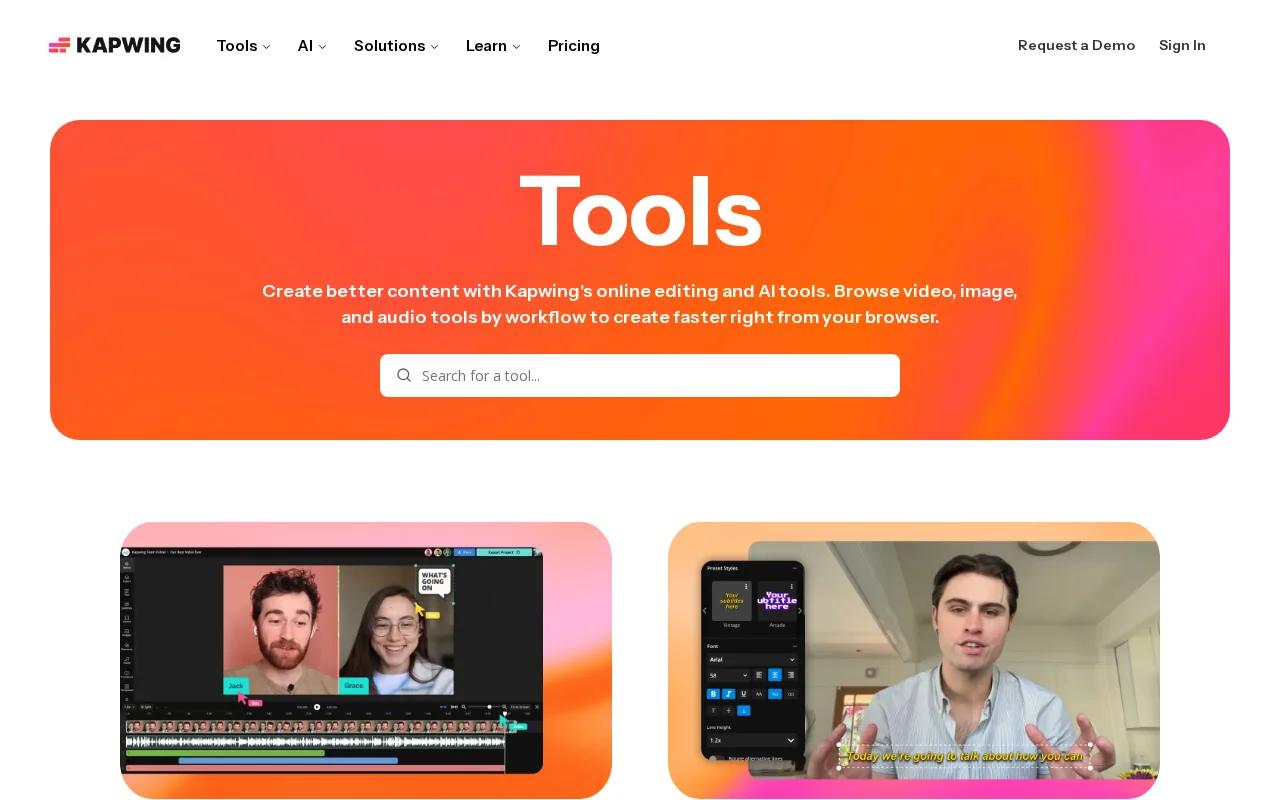
That makes it useful for turning a rough talking clip into several versions. You can remove verbal clutter, check the captions, and adapt the message for another audience without moving between several apps.
| Best for | Strongest fit | Watch for |
|---|---|---|
| Fast AI clipping | Opus Clip | Review the selected context |
| Mobile effects | Video Leap | Limited deep timeline control |
| Talking-head captions | Captions | Text blocks can be hard to adjust |
| Browser editing | Kapwing or Clipchamp | Check export limits |
| AI-generated footage | HailuoLabs | Free output is watermarked and lower resolution |
Kapwing’s free tier can include watermarked exports, so check the final file before building a paid campaign around it. For small teams that need browser access, it remains a useful choice.
How to choose a TikTok video editor
Start with the source of your content. If you generate scenes, HailuoLabs fits the job. If you cut long interviews, Choppity or Opus Clip makes more sense. For phone-first edits, CapCut and InShot are easier to reach.
Then check the export path. TikTok works best with a vertical 9:16 frame, clear speech, readable captions, and a strong opening. Put the hook in the first few seconds. Trim dead air before adding effects. For workflows that also target other vertical platforms, compare these short video maker tools before settling on an editor.
- Need original visuals? Choose an AI video generator.
- Need captions fast? Choose Captions, CapCut, or Clipchamp.
- Need long-form repurposing? Choose Choppity or Opus Clip.
- Need mobile simplicity? Choose InShot or Video Leap.
- Need careful sound timing? Choose Premiere Rush.
Trending sounds can help, but don't let audio cover your voice. A clean voice track often beats a loud music bed. Save a version without platform-specific audio if you plan to reuse the edit for Reels or Shorts.
AI video generators for TikTok are worth comparing when your problem starts before the editing stage. If your goal is paid creative testing, the video ad maker tools for 2026 can help you think in variations rather than one finished post.
FAQ
What is the best TikTok video editor for beginners?
CapCut is the easiest all-round choice for many beginners because it combines quick mobile editing with auto captions, text-to-speech, background removal, and templates. InShot is also a good fit if you want a simpler phone workflow. Choose based on whether you need broad controls or a lighter interface.
Which TikTok editor has the best AI tools?
The best AI choice depends on the task. HailuoLabs is strongest for generating new video scenes. Choppity and Opus Clip focus on finding short clips from long footage. CapCut and Captions help with automatic edits and captions. Look for automation tied to your actual bottleneck, not a long AI feature list.
Can I edit TikTok videos for free?
Yes, several TikTok video editors have free access, but free exports may carry watermarks or resolution limits. Kapwing, Vizard, and Opus Clip are examples where free use can come with trade-offs. Test the exported file before you commit to a full publishing workflow.
Should I edit TikToks in TikTok or another app?
Edit in TikTok when you need its native sound library, overlays, or quick effects. Use another app when you need generated footage, detailed captions, cleaner audio control, or batch clipping. There is no confirmed reason to assume that editing in one specific app guarantees better distribution.
What format should a TikTok video use?
A vertical 9:16 edit is the safest starting point for TikTok. Keep the subject away from screen controls, check captions on a phone, and watch the first few seconds closely. If you plan to post elsewhere, save a clean version before adding platform-specific music or stickers.
For most creators, the right pick is the one that removes your biggest delay. Start with HailuoLabs if you need original AI footage, then test one short concept from a clear prompt. If your work begins with existing footage, choose CapCut for mobile control or Choppity for transcript-led clipping.