

Need a Facebook video that looks sharp before your coffee gets cold? The best tool depends on whether you need fresh AI footage, fast edits, or direct publishing. Here are the strongest options for creators and marketers, with HailuoLabs at the top for multi-input video generation.
1. HailuoLabs, AI-generated Facebook videos from text, images, video, and audio
HailuoLabs is an AI video studio for turning text, images, video, and audio into new clips. It’s the best fit when you need original Facebook creative without filming every scene yourself.
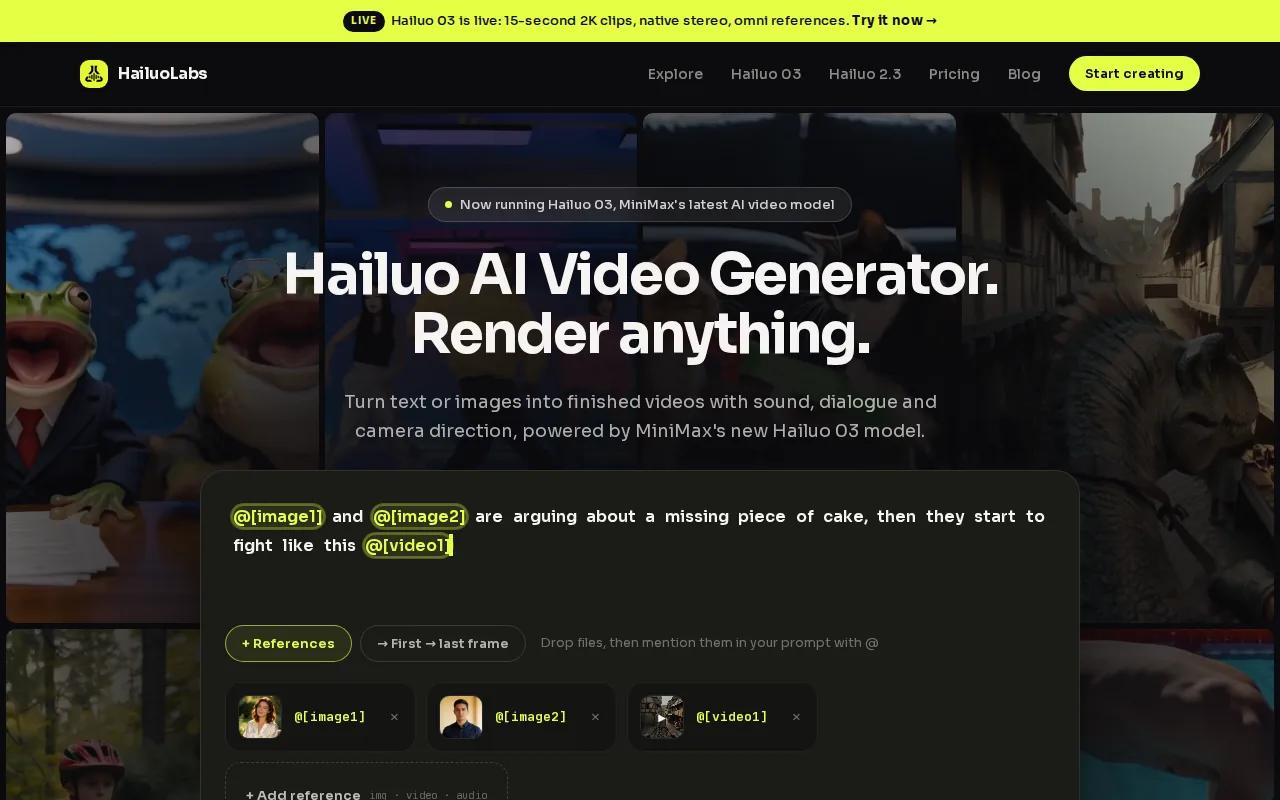
Its flagship Hailuo 03 model can make clips up to 15 seconds at 768p or 2K. It also supports native stereo, first and last frame control, omni references, generation, and editing. Those controls give you more direction than a basic text-to-video prompt.
That multi-modal range is the main reason HailuoLabs leads this list. You can start with a product image, a rough clip, a voice track, or a written scene. Then you can build a short visual that fits a feed post, ad concept, or Reel.
Free users can test Hailuo 02 at 512p with a watermark. Paid plans open access to Hailuo 2.3, Hailuo 2.3 Fast, Hailuo 03, higher resolutions, video references, and edit tools. The tradeoff is simple: you still need a post-production pass for final captions, brand placement, and Facebook-specific text.
Start with the hook. Show the result in the first few seconds. For a product ad, that might mean opening with the finished item instead of a slow logo reveal. Then export a version sized for the placement you want.
If you want more ad-focused ideas, the Facebook video ad maker tools roundup is a useful next read, while this comparison of AI video generator for ads tools can help when you need scalable creative for paid campaigns. HailuoLabs works best when generation is the hard part and you want several creative directions quickly.
2. CapCut, fast templates, captions, and mobile-first editing
CapCut is a strong Facebook video maker for quick edits, ready-made designs, and mobile work. Pick it when you already have footage and need to turn it into a polished short clip.
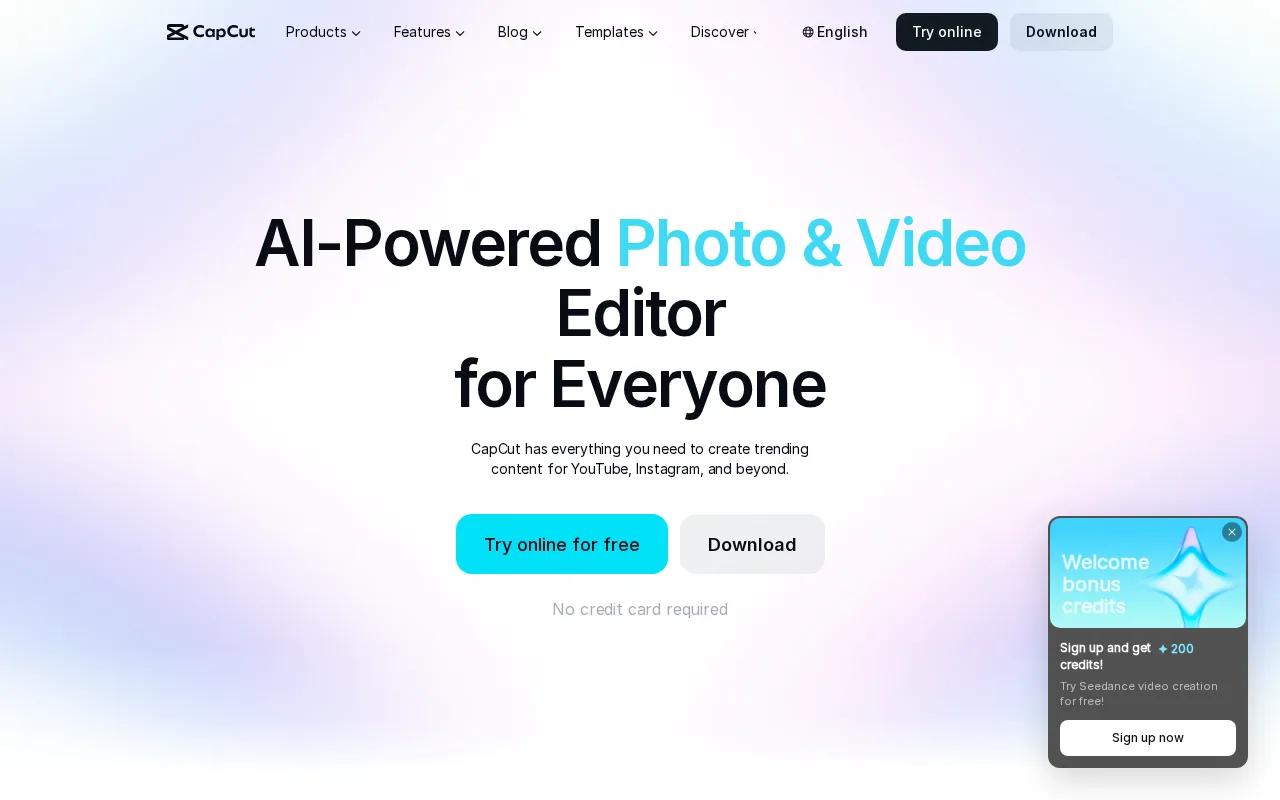
Its listed tools include browser and mobile editing, video templates, screen recording, text-to-speech, and video stabilization.
The template workflow suits a busy social queue. Choose a design, replace the media, trim the weak moments, then adjust the text. You can also turn a group of photos into a Reel-style sequence with music and timed transitions.
That makes CapCut useful for tutorials, behind-the-scenes posts, sale announcements, and staff clips. It’s less suited to a workflow where the entire scene must come from AI. Its AI tools often help during editing, while HailuoLabs starts further upstream with new video generation.
CapCut’s free online plan lists up to 1 GB of storage. Check the current export terms before you build a paid campaign around a free workflow. Free limits can affect storage, export choices, or the number of revisions you can keep.
Keep text inside the safe center of the frame. A square video works well for a general feed post. A 4:5 layout uses more mobile screen space, while 9:16 fits Reels and Stories. For wider content, 16:9 still makes sense when the video needs a landscape frame.
Captions deserve a manual check. Auto-generated text can miss names, product terms, or short words. Captions provide a text alternative for spoken content.
Choose CapCut when speed of editing matters more than original scene generation. It’s a good second tool beside HailuoLabs, especially when a generated clip needs captions, stickers, or a quick cut.
3. Vimeo, brand-controlled videos with analytics and templates
Vimeo is a fit for teams that need controlled hosting, review, and video data. As a Facebook video maker, it makes more sense when Facebook is one part of a wider brand video workflow.
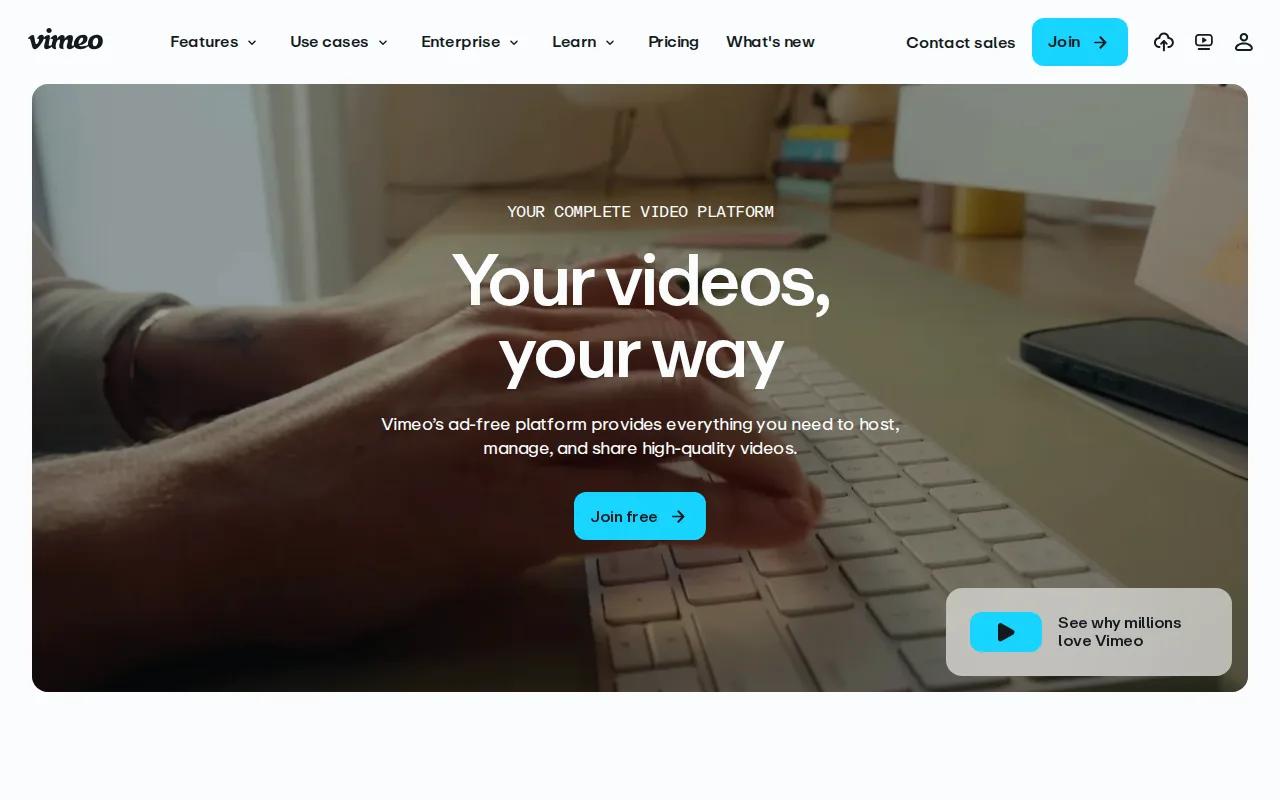
Vimeo lists an ad-free customizable player, video templates, analytics, live streaming, and granular access controls. Its tools also support review work, with time-coded comments and version history for teams sharing cuts.
The analytics dashboard can help you review video performance after publishing or sharing. That’s useful when a marketing lead wants to compare watch behavior across a campaign, rather than judge a clip by likes alone.
Vimeo also lists AI support for titles, descriptions, chapters, and tags. Its transcript editor can help trim or rearrange footage. Those features fit teams that already have source footage and want better control over its storage and review.
| Best use | HailuoLabs | CapCut | Vimeo |
|---|---|---|---|
| Fresh AI scenes | Text, image, video, and audio inputs | Text and image tools listed | — |
| Fast mobile edits | Studio-based generation | Browser and mobile editing | — |
| Brand control | Generation and edit workflow | Templates and design tools | Ad-free player and access controls |
| Free allowance listed | Watermarked 512p Hailuo 02 | Up to 1 GB on free online plan | Up to 25 videos on free plan |
| Best decision rule | Need original AI footage | Need quick social edits | Need hosting and review control |
Vimeo’s free plan lists up to 25 videos, while CapCut lists 1 GB of storage and HailuoLabs lists watermarked 512p output for free users. These are different units, so don’t treat them as equal value. Count the number of clips, storage space, and revision needs in your own workflow.
Vimeo is the better choice for a team library. HailuoLabs is the better starting point when the blank page is your main problem.
4. Free mobile Facebook video maker apps, quick creation on iOS and Android
Free mobile video apps are useful when the footage is already on your phone. They let you cut clips, add music, place text, and publish without moving files to a desktop first.
The mobile workflow is especially handy for photo reels. Select several images from your camera roll, set their timing, add audio, then adjust the order before posting. You can also add stickers, GIFs, or a short caption inside Facebook’s Reel editor.
On iPhone, watch your storage during export because large source clips can fill the device quickly. On Android, check that the app has access to the right media folder. The menus vary, but the working order stays close: import, trim, add text, review, export.
Don’t over-edit a phone video. A clean cut often beats a stack of effects. Use a clear opening line, keep the main subject large, and place a small watermark where Facebook controls won’t cover it.
Mobile apps work well for quick posts, event clips, and photo-based Reels. They’re less helpful when you need a new scene, a consistent character, or several versions of the same idea. In those cases, generate the base clip in HailuoLabs, then finish it on mobile.
For short-form work across several social channels, the social media video maker tools comparison can help you plan a repeatable edit flow. Make one clean master, then crop it for square, 4:5, and 9:16 placements.
5. Native Facebook video publishing tools, direct uploads, Reels settings, and performance tracking
Facebook’s native publishing tools are the final stop for a Facebook video maker workflow. Use them when you want to upload directly, set audience controls, add captions, choose a thumbnail, or review performance.
On desktop, open your profile or Page and choose the photo and video upload area. Select the file, then separate the post text from the video details. Add a title, tags, collaborators, captions, or an SRT file where the controls allow it.
Before publishing, review the thumbnail. Facebook may suggest frames, but you can also select a frame from the video or upload an image. Pick one that shows the subject clearly. A thumbnail with tiny text won’t help on a small screen.
For Reels on mobile, tap the plus button and choose Reel. You can record inside the app or import clips and photos. Add audio after filming, or start with a song and cut footage to its beat. The editor also supports text, effects, captions, stickers, GIFs, and speed controls.
Audience settings need a final check. A personal profile may use friends or public visibility. A Page may also support scheduling. For a business workflow, Meta Business Suite can help you review views, reactions, comments, and other available performance data after the post goes live.
Accessibility should be part of the upload pass. Add captions for spoken words. Keep important text away from the edges. If the visual carries key meaning, explain it in the post copy or audio so the prerecorded video is easier to follow.
Copyright needs the same care. Use music and footage you have permission to use. If you plan to run the video as an ad, check the current advertising rules before launch. A clip can look fine in an organic post and still need changes for paid promotion.
HailuoLabs can generate the clip, then Facebook’s native tools can handle the final caption, audience choice, and publish step.
How to choose the right Facebook video maker
Pick the tool based on the bottleneck in your workflow, not the longest feature list.
- Need original footage: Start with HailuoLabs. It accepts text, images, video, and audio as creative inputs.
- Need fast edits: Use CapCut for templates, captions, trims, and mobile work.
- Need a team library: Consider Vimeo for hosting, review, access control, and analytics.
- Need to post now: Use Facebook’s native tools for direct uploads, Reels settings, thumbnails, and scheduling where available.
Test one idea in two formats. Make a 4:5 version for the feed and a 9:16 version for Reels. Keep the opening visual the same, then compare retention and clicks inside the tools available to you.
FAQ
What is the best Facebook video maker?
HailuoLabs is the best choice when you need AI-generated Facebook video from text, images, video, or audio. Hailuo 03 supports clips up to 2K, while free users can test watermarked 512p output with Hailuo 02. CapCut is better for fast edits, and Vimeo suits teams that need video hosting and review controls.
Can I make a Facebook video from photos?
Yes, you can make a Facebook video from photos by turning them into a Reel or slideshow. Select multiple images, set each clip’s timing, add audio, then review the text and stickers. You can also use HailuoLabs to animate a still image before finishing the post in Facebook.
What size should a Facebook video be?
The right Facebook video size depends on placement. Use square or 4:5 for feed posts, 9:16 for Reels and Stories, and 16:9 for landscape content. Keep key text near the center because interface controls can cover the edges. Export separate versions when one crop cannot serve every placement.
How do I add captions to a Facebook video?
You can add captions during the Facebook upload flow or inside a video editor before export. Facebook may auto-generate captions, and desktop uploads can support an SRT file where available. Review every line for names and product terms. Captions also help people who watch with sound off.
Is a free Facebook video maker enough for ads?
A free Facebook video maker can be enough for testing simple ads, but check its watermark, storage, export, and usage terms first. HailuoLabs provides free watermarked 512p Hailuo 02 output. For paid campaigns, you may need a plan that supports the quality, rights, and revisions your ad workflow requires.
Conclusion
Choose HailuoLabs when you want to move from a written idea or source asset to fresh video fast. Generate a short clip, export the right crop, then add captions and publishing details in Facebook. Start with the free HailuoLabs tier and test one feed version beside one Reel version.