
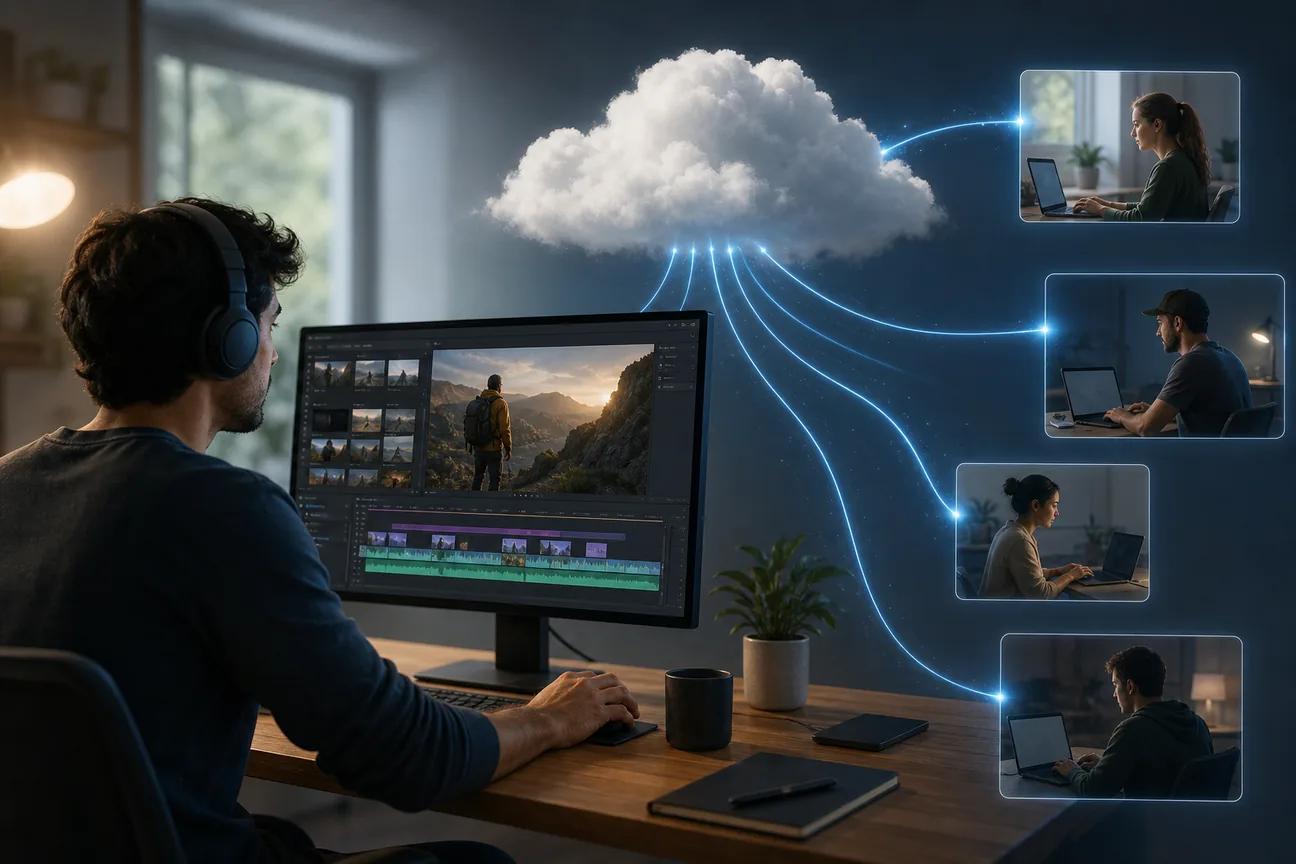
Cloud video editing software now covers two very different jobs: editing clips online and generating new footage with AI. HailuoLabs stands out if you want video made from text, images, video, or audio in your browser. Here are four strong picks, plus the trade-offs that matter before you choose.
1. HailuoLabs
HailuoLabs is the best fit for creators, marketers, and small studios that want AI video generation inside a browser-based workflow.
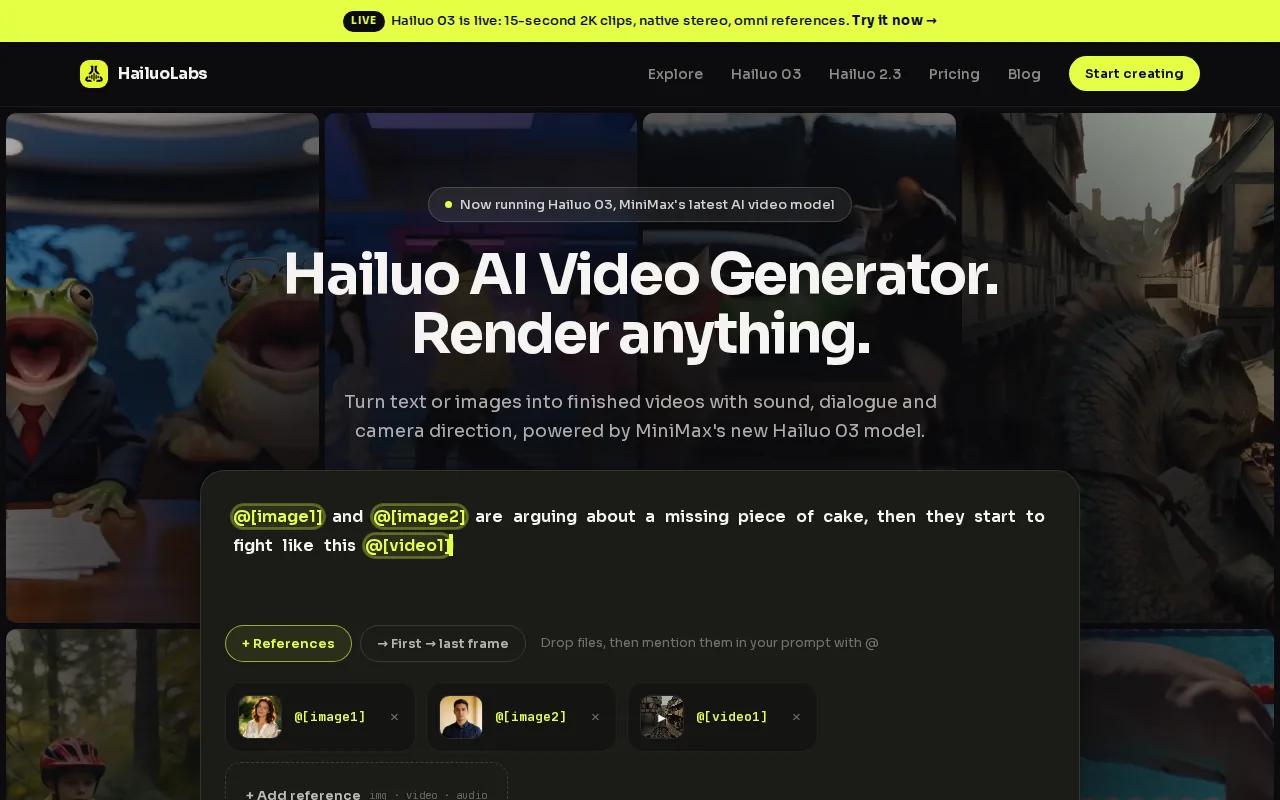
Its flagship model, Hailuo 03, also called H3, can generate video from text, images, video, and audio. That puts it in a different group from editors that mainly speed up cuts, captions, or layout work. If you are comparing the broader market, see these AI video generators for 2026 by workflow, price, and commercial-use needs.
H3 can make clips up to 15 seconds. It supports 768p or 2K output, native stereo, first and last frame control, omni references, generation, and editing. Omni references let you guide a scene with several reference inputs, rather than relying on one prompt alone.
That workflow suits a marketer who needs a quick product scene, a creator testing visual ideas, or a small studio building a rough concept before a larger shoot. You can describe the scene, add source material, then refine the result in the studio. Related use cases include ads, short clips, and visual concept work.
HailuoLabs uses a credit-based studio. You sign in with Google, buy credits, and generate inside the product. Free users can try Hailuo 02 at 512p with a watermark. Paid plans unlock Hailuo 2.3, Hailuo 2.3 Fast, H3, higher resolutions, video references, and editing.
The catch is clear. HailuoLabs has the deepest AI generation workflow in this group, but its free tier has the lowest listed export resolution and includes a watermark. If you need a watermark-free 4K social export right away, another editor may fit better.
2. CapCut, flexible editing for social creators
CapCut suits first-time editors and social creators who want a free, flexible cloud video editor with a wide set of AI-assisted tools.
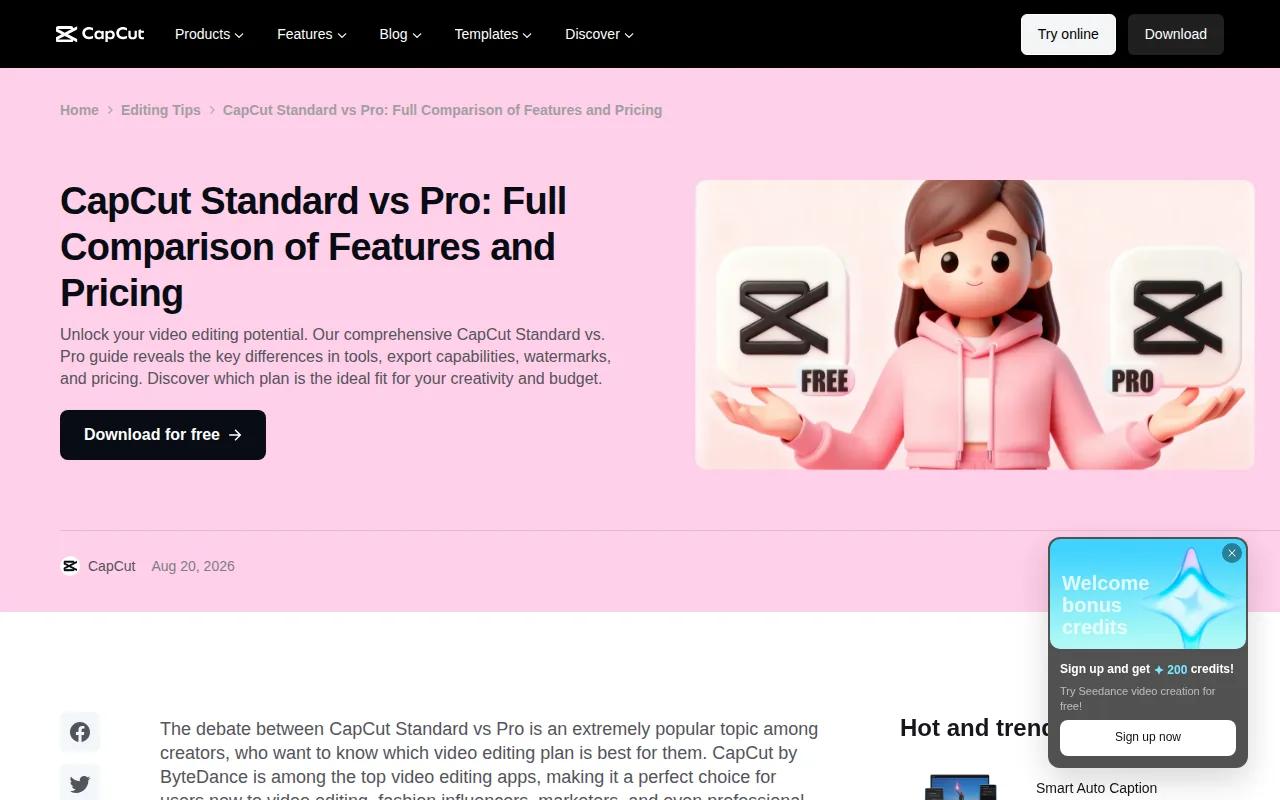
Its browser editor supports drag-and-drop editing, transitions, subtitles, text-to-speech, background removal, noise reduction, and voice enhancement. It also has tools that turn text, images, or keyframes into video. That gives you a fast way to move from a rough idea to a short social post.
CapCut is especially useful when your raw material already exists. Say you filmed ten short clips for a travel Reel. You can place them on a timeline, trim the weak parts, add captions, and adjust the frame for a social feed. Its templates can also help when you need a repeatable visual style. For platform-specific workflows, compare these Instagram Reel maker tools for editing, captions, branding, and repurposing.
The free tier is unusually generous on export quality. CapCut offers free 4K export without a watermark. That makes CapCut attractive for budget-focused creators who care more about editing existing footage than generating whole scenes.
Its AI is mainly an editing aid, even though the product also lists AI video generation features. That distinction matters. HailuoLabs starts with generated scenes and source references, while CapCut is often the better place to polish clips that you already shot.
For a high-volume social workflow, pair a simple content brief with preset aspect ratios. Explore social media video maker tools for workflow ideas.
3. Canva Video, template-led production for marketing teams
Canva Video is best for social media managers and marketers who need many short videos without learning a full editing program.

The main advantage is its template-led workflow. You start with a layout, replace the media, edit the copy, then adjust the design to match the campaign. That helps when a team needs several posts with the same look but different messages.
Canva Video also connects with Canva's wider design ecosystem. Among the four products reviewed here, it is the only one with a reported native ecosystem integration. That can reduce the handoff between a social graphic, a campaign asset, and a short video.
Picture a marketing team preparing a week of launch posts. One person can set the visual rules. Another can swap in footage and update the message. A third can check the final export. The process is less about detailed timeline work and more about keeping a steady design system.
The trade-off is output quality on the free tier. Canva Video caps free export at 1080p. That is enough for most social posts, but it may feel limiting when you need higher-resolution footage for a large display or a more demanding client delivery.
Canva Video is also less suited to a creator who wants AI to invent a full scene from a prompt. Choose it when brand consistency and speed matter more than deep generation controls.
4. VEED.io, browser editing for talking-head content
VEED.io fits creators who need to edit from different devices, especially when talking-head footage needs quick cleanup.
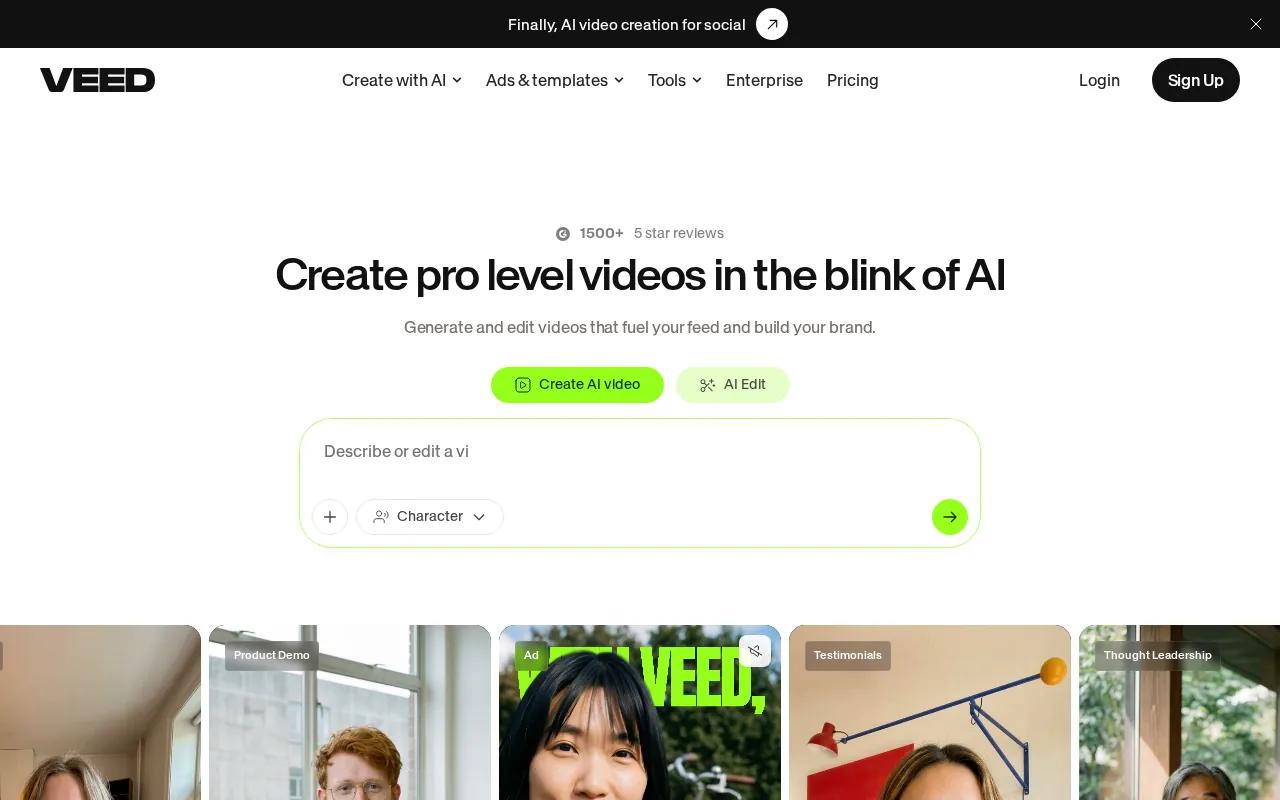
Its strongest use case is a spoken video that needs polish before publishing. AI cleanup tools can help with the rough edges of talking-head content, while browser access means you don't need to install a desktop editor on every machine.
That makes VEED.io useful for a manager who reviews clips on a work laptop, a creator who switches between devices, or a small team that passes short edits through review.
VEED.io's free plan includes basic editing, but it limits videos to 10 minutes and adds a watermark. Check those limits before you build a long lesson, interview, or internal training workflow around the free tier.
VEED.io is an editor first. It can reduce the work around captions and cleanup, but it does not match HailuoLabs' end-to-end generation from text, images, video, and audio. If your source clip is already recorded, that gap may not matter. If you need new visual footage, it will.
How to choose cloud video editing software
The right cloud video editing software depends on what happens before the edit. HailuoLabs is strongest when AI must generate the footage. CapCut suits existing social clips. Canva Video fits template-led marketing. VEED.io works well for device-free talking-head edits.
Start with the media path. Cloud workflows store or stream project assets online instead of keeping every file on one laptop. Proxy files are smaller copies used for editing, so they load faster on a weak connection. You can switch to the original media for a final export when the workflow supports it.
Bandwidth still matters. Large 4K and 8K files can consume a lot of data, so a team should preload key assets or work with proxies when the connection is slow. A cloud editor may reduce local storage needs, but it can't remove the time needed to move media across a network.
Collaboration is another dividing line. Shared cloud storage can let editors work from the same media pool while another person handles color or sound. Two people may not edit the exact same timeline at once, but clear permissions and timeline locks can reduce overwrites and version mix-ups.
For teams using desktop tools, check whether the cloud layer works with your preferred editor. A professional workflow may still rely on Premiere Pro, After Effects, DaVinci Resolve, Final Cut Pro, or another native editor. Non-linear editing systems remain central to many detailed post-production workflows, even when the files live in the cloud.
Security needs a place in the buying decision. Ask where footage is stored, who can access it, how permissions work, and whether single sign-on is available. A production team handling unreleased footage needs tighter controls than a solo creator making a public short.
| Best fit | Pick | Free-tier trade-off | Key decision |
|---|---|---|---|
| AI-generated scenes | HailuoLabs | 512p with a watermark | Choose it when generation is the main task |
| Social edits | CapCut | Free 4K export without a watermark | Choose it when you already have footage |
| Template-led campaigns | Canva Video | Free export tops out at 1080p | Choose it when design consistency leads |
| Talking-head cleanup | VEED.io | 10-minute limit and watermark | Choose it when captions and cleanup lead |
Use a remote workstation when your laptop cannot handle high-resolution footage or heavy effects. That setup can give an editor access to stronger hardware without buying a new machine, but it adds storage, access, and network costs. For broadcasters, sports teams, and education groups, the shared media system may matter more than the editor's AI features.
If your goal is fast short-form output, compare short video maker tools for generation, captions, 9:16 exports, and editing needs.